
Figma access
Figma is the single source of truth, and the figma-console MCP server reads it through a
Desktop Bridge plugin running inside Figma Desktop. A REST access token is
a secondary channel — it only authorizes read-only metadata calls and is not
required for screenshots, selection tracking, or any interactive tool.
How the pieces connect
Claude Code spawns the MCP server, which opens a local WebSocket. The Figma Desktop plugin connects to that socket. The REST token is an optional side channel the MCP uses for metadata reads — it does not carry any of the live plugin traffic.
Step 1 — Install the Desktop Bridge plugin (required)
Takes ~90 seconds. One-time setup. The plugin is bundled with the MCP package — no separate download.
Seed the plugin directory
Run the MCP package once. On first launch it auto-populates
~/.figma-console-mcp/plugin/ with manifest.json and UI assets.
# safe to run any time — exits quicklynpx -y figma-console-mcp@latest --help
# confirm the manifest landedls ~/.figma-console-mcp/plugin/manifest.jsonImport the plugin into Figma Desktop
Open Figma Desktop (normal launch, no special flags). In the top menu, go to
Plugins → Development → Import plugin from manifest… and pick
~/.figma-console-mcp/plugin/manifest.json.
Run the plugin and keep it open
From the menu: Plugins → Development → Figma Desktop Bridge. A small
plugin panel opens — keep it visible while you work. The panel scans ports
9223–9232 and connects to any MCP server it finds. You will see the
status flip from searching… to connected once Claude Code starts the
MCP.
Step 2 — Add a REST access token (optional)
Only needed if you want Claude to read file/variable/comment metadata via Figma's REST API. All interactive work — screenshots, selection, edits — already flows through the plugin and does not require this token.
Open Figma settings
Go to Figma → Settings → Security, scroll to Personal access tokens.
Generate the token
Name it atelier-ui-workshop. Pick an expiration (default is
1 day; bump it to 30 or 90 days if you plan to keep using the workshop).
Under Scopes, enable
Files → File content (Read) as the minimum. For the Token
Browser and Design System Dashboard, also tick
Design systems → Library content (Read) and
Library assets (Read). Click Generate token
and copy the value (figd_…) — it is shown only once.
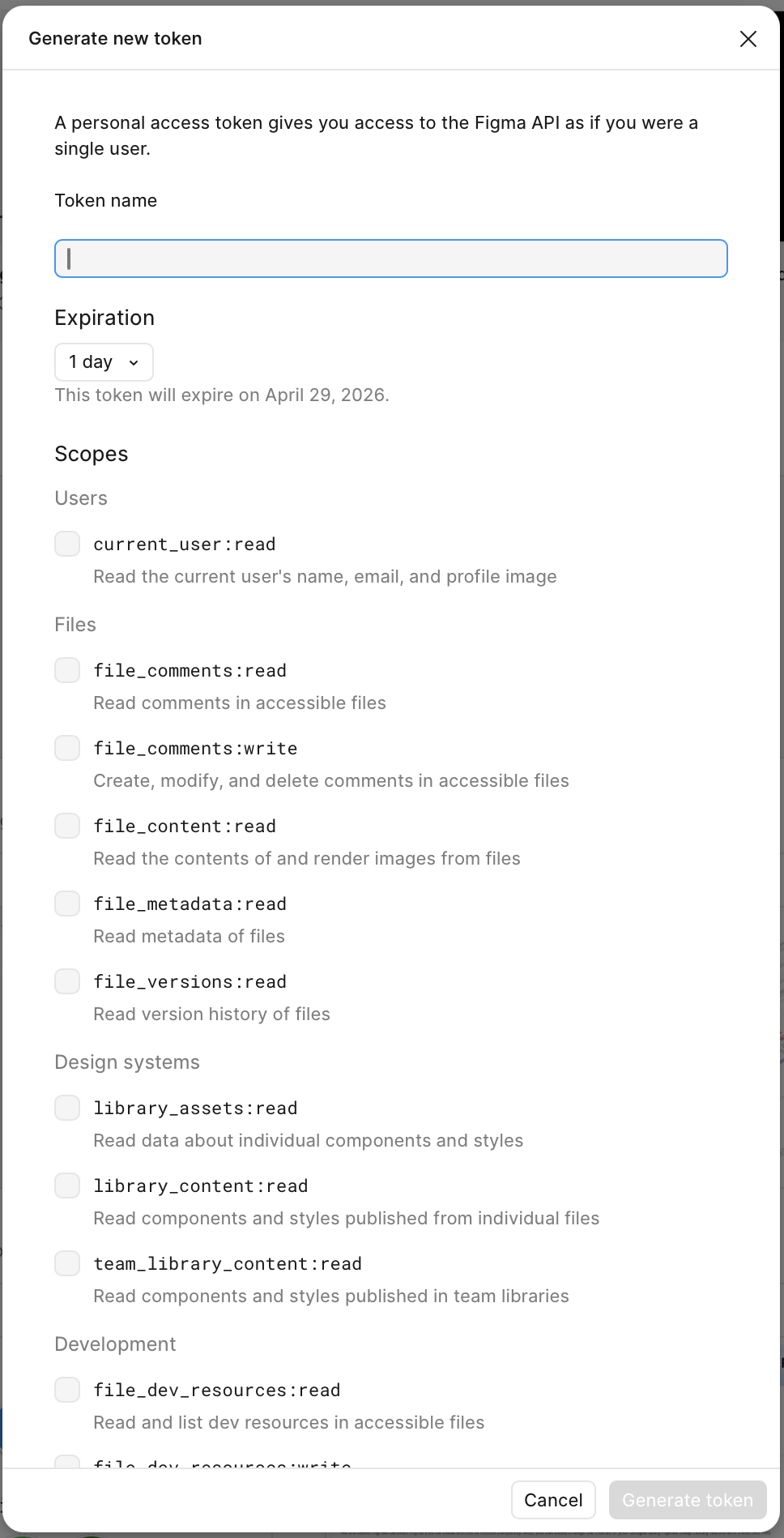
figd_ followed by ~36 characters. Figma hides it after the dialog closes.
Step 3 — Wire the token into .mcp.json (only if Step 2)
The MCP process receives its environment from the env block of
.mcp.json, not from your login shell. A bare export will
not reach the child process unless .mcp.json references it explicitly. Two
options:
Option A — Shell export + $${VAR} substitution (recommended)
Keeps the token out of version control. Claude Code expands
$${FIGMA_ACCESS_TOKEN} from your shell at MCP startup
(see the expansion docs).
// .mcp.json"figma-console": { "command": "npx", "args": ["-y", "figma-console-mcp@latest"], "env": { "FIGMA_ACCESS_TOKEN": "${FIGMA_ACCESS_TOKEN}", "ENABLE_MCP_APPS": "true" }}# macOS / Linux (zsh / bash) — persist the tokenecho 'export FIGMA_ACCESS_TOKEN=figd_your_token_here' >> ~/.zshrcsource ~/.zshrc
# Windows (PowerShell)[Environment]::SetEnvironmentVariable("FIGMA_ACCESS_TOKEN","figd_your_token_here","User")Option B — Inline value
Simpler, but the token lives in the file. Fine for a machine-local, git-ignored
.mcp.json — never commit it.
"env": { "FIGMA_ACCESS_TOKEN": "figd_your_token_here", "ENABLE_MCP_APPS": "true"}
Restart Claude Code after either change so it re-reads .mcp.json.
ENABLE_MCP_APPS=true unlocks the Token Browser and Design System Dashboard UI
(clients without ext-apps protocol support will ignore it).
Can't run Figma Desktop? Cloud mode
If you are on a locked-down machine, in a browser-only Codespace, or using
Claude.ai on the web, point the MCP at the hosted relay at
https://figma-console-mcp.southleft.com/mcp.
You will be issued a 6-character pairing code (5-minute TTL) and get a reduced set of
~44 write tools. Selection tracking and console streaming are not available in cloud mode.
// .mcp.json — cloud variant"figma-console": { "type": "http", "url": "https://figma-console-mcp.southleft.com/mcp"}Verify the setup
npm run preflightPreflight checks the plugin manifest, the port range, and the token — in that order. The plugin manifest check is the important one: if it's missing, re-run Step 1. Token-related lines are warnings, not failures. See troubleshooting for the most common connection issues.
For a live smoke test, open Claude Code in this repo and ask:
Use the figma-console MCP to call figma_get_status and report what it returns.A successful response means the WebSocket bridge is live. A "not connected" error means the plugin is either not imported, not running, or blocked by a port conflict.
Figma is connected
figma_get_status reports the WebSocket bridge as connected. If you did
Steps 2–3, FIGMA_ACCESS_TOKEN is set and wired into .mcp.json so
metadata reads work too. If figma_get_status returns "not connected", re-check
Step 1 or see troubleshooting.